Frequently Asked Questions:

How to Install?
Application is available through the Microsoft Store (Windows 10 & 11).  There is a 7-day fully functional trial available.
Windows only? - Yes – it’s a Microsoft Store app, for Windows 10 & 11.
Compatibility ?
All Cloud Compatible Blackvue Cameras: 
DR650S/GW, DR750S-1CH/2CH (incl. IR & Truck), DR750X-1CH/2CH/3CH (incl. Plus, IR & LTE), DR900S-1CH/2CH (incl. IR), DR900X-1CH/2CH (incl. Plus), DR970X, DR970X LTE/Plus, DR770X
ELITE series — ELITE 8, ELITE 9, ELITE 10, ELITE + Gold & ELITE Air — including the latest RESTful camera firmware.

Basic Setup:
1. Install from Windows Store
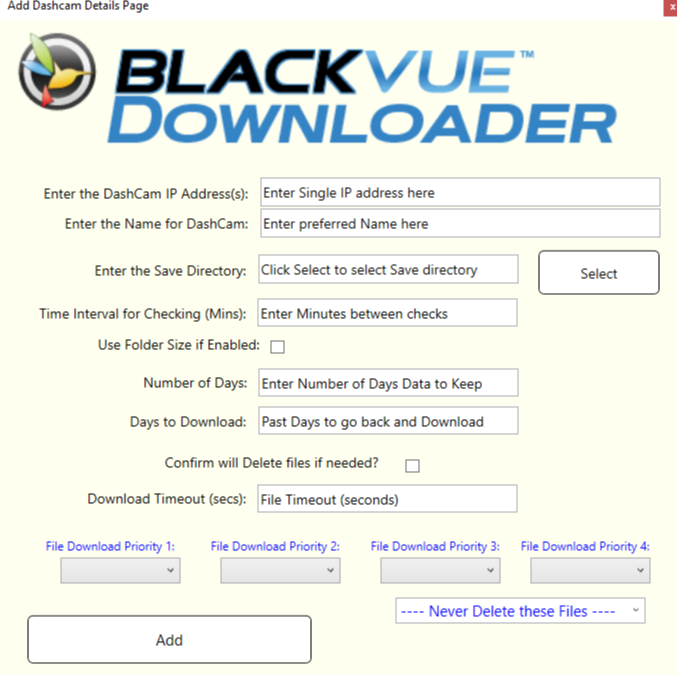
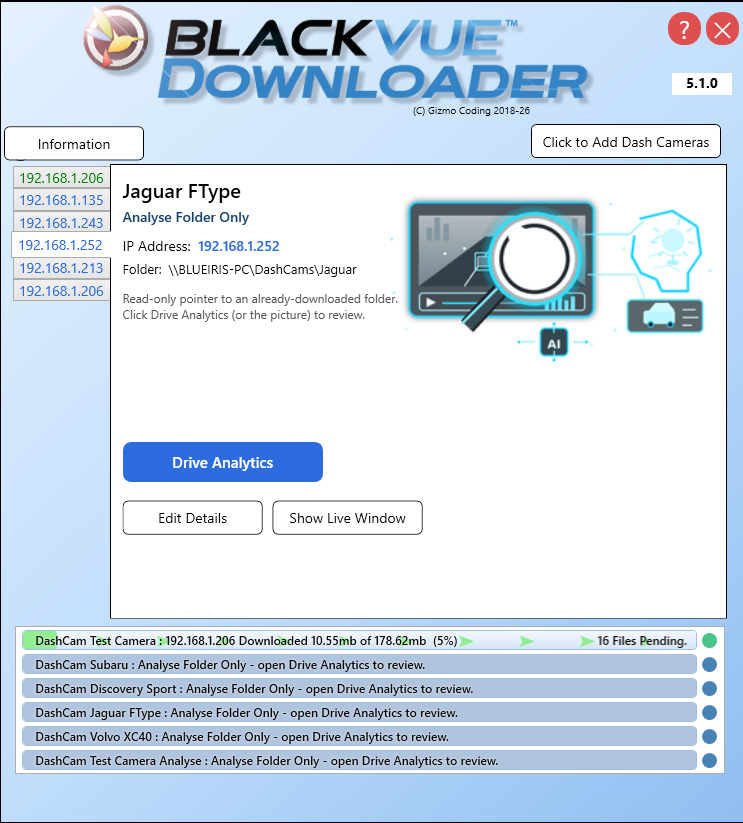
2. Run Blackvue Downloader – press Add Dashcamera Button:

This Box Appears:

Enter the settings as explained; the most important being Ip address of Dashcam and Save Directory location.

Default settings will be used if left blank or uncertain.

I can't find my IP address for my DashCam (what is this Router thing being mentioned?)
You need to go into your Router or DHCP device find the IP address of the Camera/Manufacturer is Pittasoft.
To connect the camera to your local wifi you need to setup Cloud from within the Dashcam - connect to the Dashcams wifi network, open the Blackvue App, change settings to enter your appropriate wifi details.  
Once camera is connected to your Wifi you will need to find its IP address and make it fixed or 'static'
Sometimes if unsure a IP Scanner programme (link) like this one can scan your whole network for the IP address - find the Manufacturer Pittasoft - thats the camera.
Depending on Router there are different settings for setting up a Static IP Address.  See below link for one, or google your particularly Router.

Once setup, the Dashcam will always use that IP address and BVD will always find. 

Should I block my Camera from accessing Internet?
In short - Yes.

If you are not using any Cloud features of the Blackvue Cameras it would pay to block its internet access.  This in my limited testing also seems to speed up transfers (possibility less SD card access)

How to do this?
Essentially it will vary Router by Router - but within you local network router, you should block the Cameras IP address (fixed/static) from accessing the internet.

Dashcam needs a fixed IP address.
If unsure what this means see here:
Basically the Dashcam needs to always have the same IP address when it connects to your wifi network.  You need to achieve this within your wifi or router settings.
Within a static or fixed IP Address everything the camera connects it will have a different address and BVD will not be able to connect to it.

My Transfers seem really slow
The Blackvue Dashcams have various factors that affect wifi speed transfer.
Dedicated SSID/AP would be ideal, expensive but ideal.
Closer the better to Wifi Access point the better the connection.
Some wifi settings may change, I have found that were available 5 gigz connections are ideal, with VHT80 or Wide Band setup if possible on Router.

My Transfers always seem to timeout?
Check the Download Timeout (Secs) per Dashcam setting
This should be set to the number of seconds that it would appear the camera is no longer available.  It should be at least twice the typical transfer speed/time.

Essentially if set very high, BVD will wait for this time before marking the camera as down/gone. That in itself is not end of world, but will wait for this timeout before trying again to download.

If too low, will timeout on normal transfers when the camera is still present, mark the camera as gone, and then retry at the timer interval.
eg.  typically takes 180 seconds to transfer normal large mp4 file
Set to 360+ seconds would be my advice.

My Folder Usage is above what I have set in GBs?
Folder usage ignores the 'Never Delete Files' that you have set.
The actual folder space used is reported, but these files are 'Never deleted' so if a lot the space used will increase above.

I have a ugly Trial Box visible/Can't start the app/Big box covering the screen...
Typically means your trial of the app has expired and you need to purchase, either through the windows store or click on the Purchase button

My dashcam won't connect / shows "Not Connected"
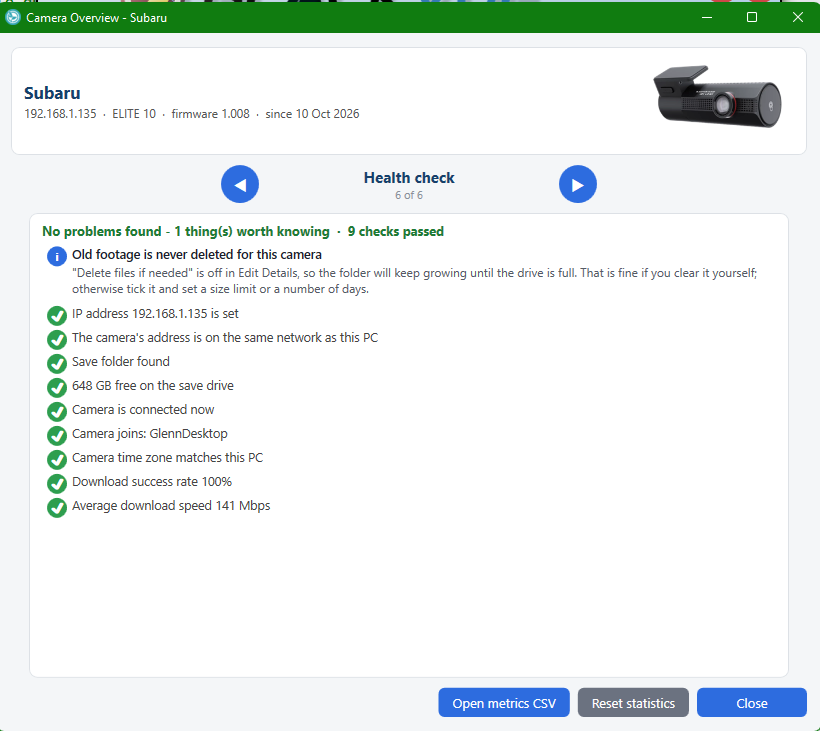
The app reaches the camera over your local Wi-Fi by its IP address, so:
- The camera must already be joined to your home Wi-Fi (set this up once in the official BlackVue phone app – it's the "Cloud"/Wi-Fi setup, not just the camera's own hotspot).
- Your PC and the camera must be on the same network/subnet (e.g. both 192.168.1.x).
- Give the camera a fixed/static IP (see above) and enter that exact IP.
- A parked camera on battery may be asleep – it only appears when powered and connected.
- Check Wi-Fi range (a booster or access point near the car helps a lot) and that no firewall is blocking it.

My settings keep disappearing / won't save
Settings are saved automatically. The usual cause of vanishing settings was running two copies of the app at once – each overwrites the other's settings file. Recent versions stop a second copy from starting, so make sure you're updated and only one copy is running (and don't keep an old sideloaded build alongside the Store version).

"HDD Used" keeps changing – is something wrong?
No. That figure reflects the disk-space situation on your save drive, which naturally changes as Windows and other applications read and write the disk. It's just information, not a fault.

How do I switch Max Speed between mph and km/h?
The app follows your Windows region/locale: a metric region shows km/h, an imperial region shows mph. Change it in Windows Settings → Time & Language → Region (Regional format), then restart the app.

It's not downloading all my videos
Check each camera's Download Priority menus – if a type is set to "Ignore" it is skipped on purpose. Also check "Days to Download" (how far back it goes) and that the save folder hasn't hit its size limit. Front and rear are separate files; both are downloaded.

Can I stop a download once it's running?
Right-click a camera → Cancel Download stops its queue. The file currently transferring is discarded rather than kept – a half-downloaded video is unusable, so partial files aren't saved. To skip a whole category going forward, set its Download Priority to "Ignore".

Where does it go when I close it?
Clicking the red X minimises it to the Windows system tray (notification area) so it keeps downloading in the background. Double-click the tray icon to reopen it; right-click the tray icon → Exit to quit completely.

Does it run on Mac or Linux?
No – it's a Microsoft Store app for Windows 10 & 11 only.

I want feature X!
Send me a email.. always happy to consider adding features within reason....