What's New?

⬇ Downloader 📊 Analyser ▶ Player

No longer just a downloader. Dashcam Downloader (formerly Blackvue Downloader) downloads, analyses and plays your dashcam footage – all in one app.

★  New in 5.5.3

A new name: Dashcam Downloader

Blackvue Downloader is now Dashcam Downloader – with a new icon and a new title.

It is the same app, on the same Microsoft Store page, with the same licence. Your cameras, settings and downloads carry straight over – there is nothing to do.

Every camera at a glance

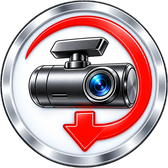
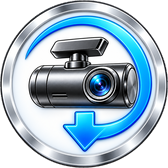
The icon in the title and in the taskbar tray now sums up all your cameras:

Red arrow
No camera can be reached
Blue arrow
A camera is connected
Green arrow turning
Downloading – the arrow turns

While a camera is connected, the title now and then shows its make – BLACKVUE or VIOFO – for a few seconds.

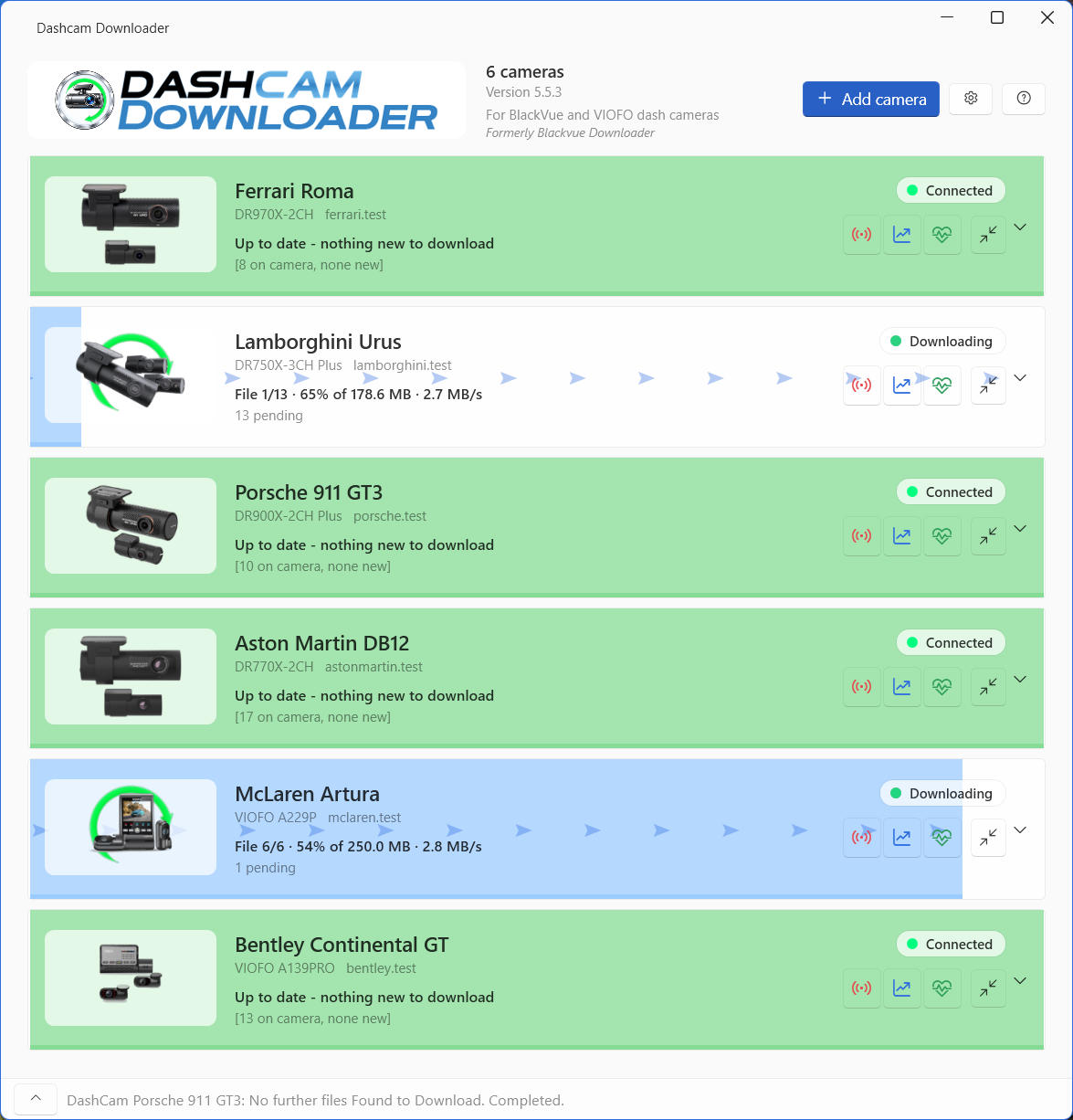
Dashcam Downloader 5.5.3 - cameras downloading, light mode

A green arrow turns behind each camera that is downloading.

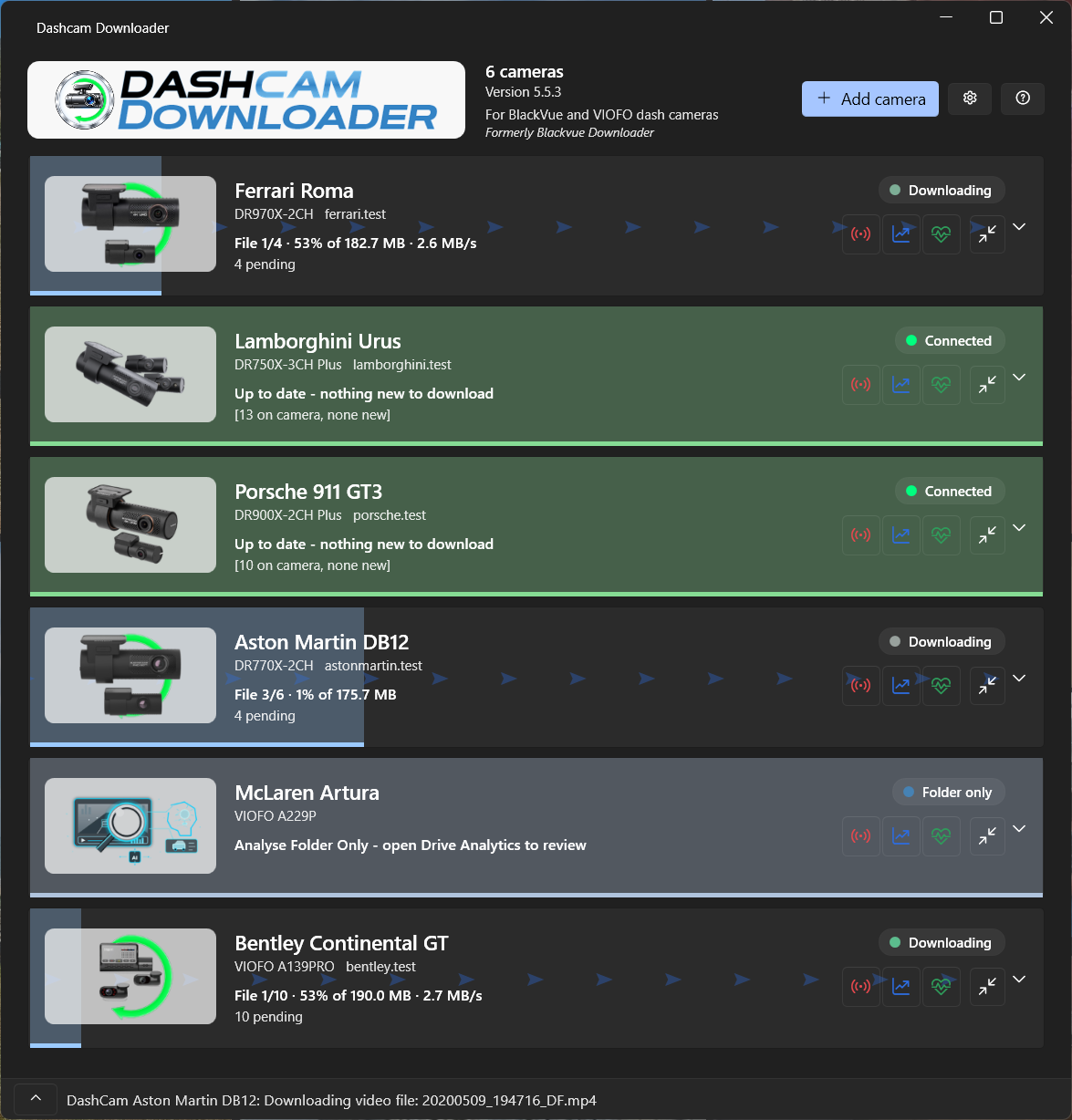
Dashcam Downloader 5.5.3 - dark mode

The same in dark mode.

Also in 5.5.3

Everything that changed in 5.5.1 to 5.5.3 →

★  Version 5.5

Version 5.5
New: VIOFO cameras

Full changelog – every change from 5.1.1 to 5.5.3 →

BlackVue Downloader now downloads from VIOFO dash cameras.

Add a VIOFO camera by its IP address, just like a BlackVue – the app works out which kind it is.

Its clips download over your home Wi-Fi, with GPS, Track Data maps and a Locked Events list.

BlackVue and VIOFO cameras side by side, in the one app.

VIOFO cameras with Wi-Fi station mode
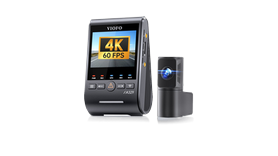
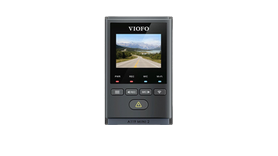
VIOFO A329
A329
VIOFO A329S
A329S
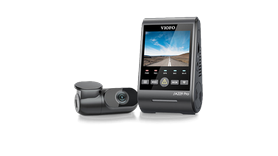
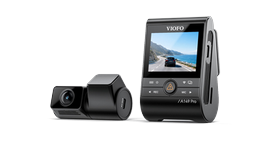
VIOFO A229 Pro
A229 Pro
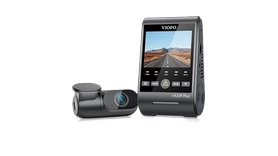
VIOFO A229 Plus
A229 Plus
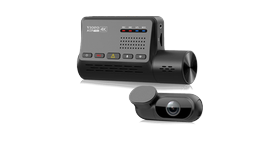
VIOFO A139 Pro
A139 Pro
VIOFO A119 Mini 2
A119 Mini 2
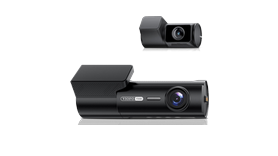
VIOFO T330
T330
New line-up – VIOFO says yes, awaiting user feedback (VIOFO's reply)
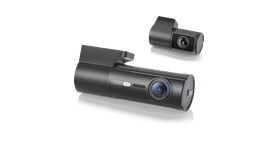
VIOFO T340
T340
New line-up – VIOFO says yes, awaiting user feedback (VIOFO's reply)
VIOFO A149 Pro Duo
A149 Pro Duo
New line-up – VIOFO says yes, awaiting user feedback (VIOFO's reply)

Before you start: Wi-Fi station mode is yours to set up

The camera has to join your home Wi-Fi – VIOFO calls this Wi-Fi station mode. You turn it on yourself, in the VIOFO app and on the camera; the app's set-up tips walk you through VIOFO's steps. VIOFO lists station mode for these models and some others – check VIOFO's site for your model. VIOFO cameras without station mode can only be downloaded with your PC joined to the camera's own hotspot.

Parking mode depends on the camera's firmware. With standard VIOFO firmware the camera switches its Wi-Fi off when parking mode starts, so downloads happen while the car is running – for example for a few minutes after you arrive home. Whether a camera can keep its Wi-Fi on while parked depends on its firmware: please confirm with VIOFO support that a suitable firmware is available for your model before relying on it.

VIOFO's new line-up – T330, T340 and A149 Pro Duo – supports Wi-Fi station mode too. VIOFO support told us that when the car is parked within range of your home network, the camera can join your home Wi-Fi, and that if you also want parking mode at the same time, VIOFO can prepare a special firmware that keeps Wi-Fi always on (VIOFO's answer, on the T330 page) – see VIOFO's reply.

User beware: VIOFO's firmware and support are outside our control. That is why the 7-day trial is fully functional – please make sure your camera downloads with it before you buy.

- Clips download over your home Wi-Fi, with the same download order, transfer groups and clean-up as your BlackVue cameras
- Clips keep VIOFO's own file names, and front, rear and interior clips stay together
- Clips the camera has locked, and parking clips, are recognised and downloaded in your chosen order
- The app only ever reads from the camera – it never changes a setting or touches the memory card
- Already have VIOFO footage on your PC? Add the folder as Analyse Folder Only and use Process VIOFO GPS to read its GPS

The GPS VIOFO records inside each clip is read after the download, so VIOFO cameras get the same tools as BlackVue:
- Drive Analytics – top speeds, with a link to each clip
- Track Data – each day's speed graph and the route on a street map; click to play the clip from that second

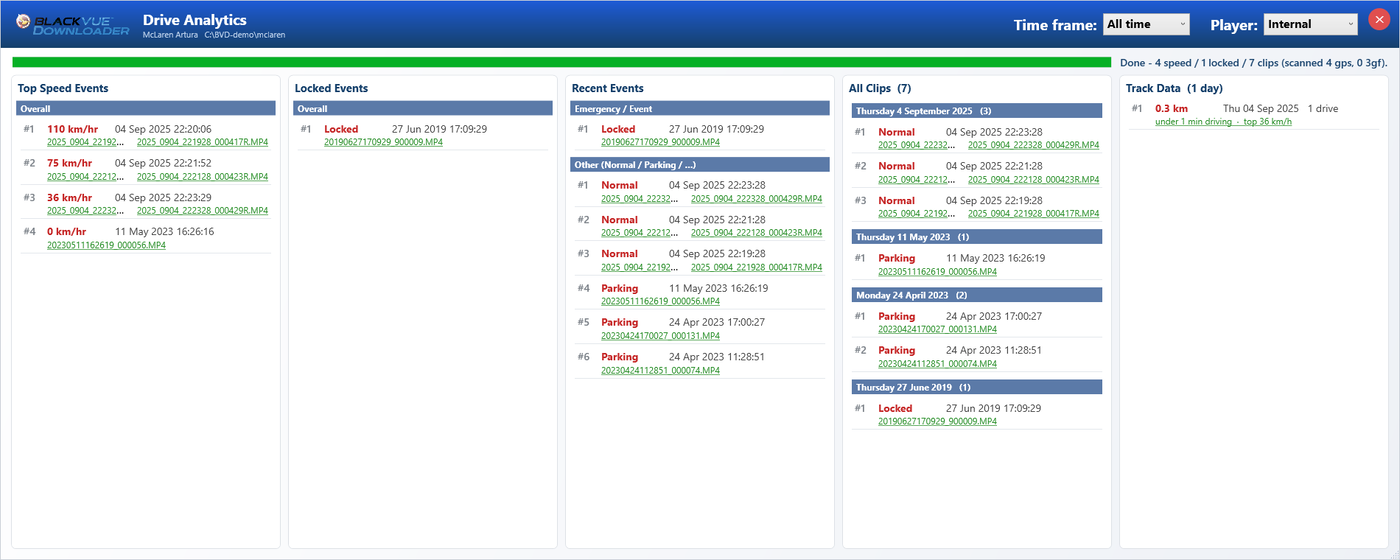
VIOFO clips carry no G-force readings, so for a VIOFO camera Drive Analytics shows Locked Events in place of the G-force column – the clips the camera locked after an impact its G-sensor detected, or a press of its lock button. Each is a link to the clip, and Recent Events lists them as events.

- The camera's own settings are shown in its Overview: time, recording, parking, power and Wi-Fi, indicators, voice and firmware
- Set-up tips for VIOFO cameras, in the Overview and in About
Drive Analytics for a VIOFO camera, with the Locked Events list
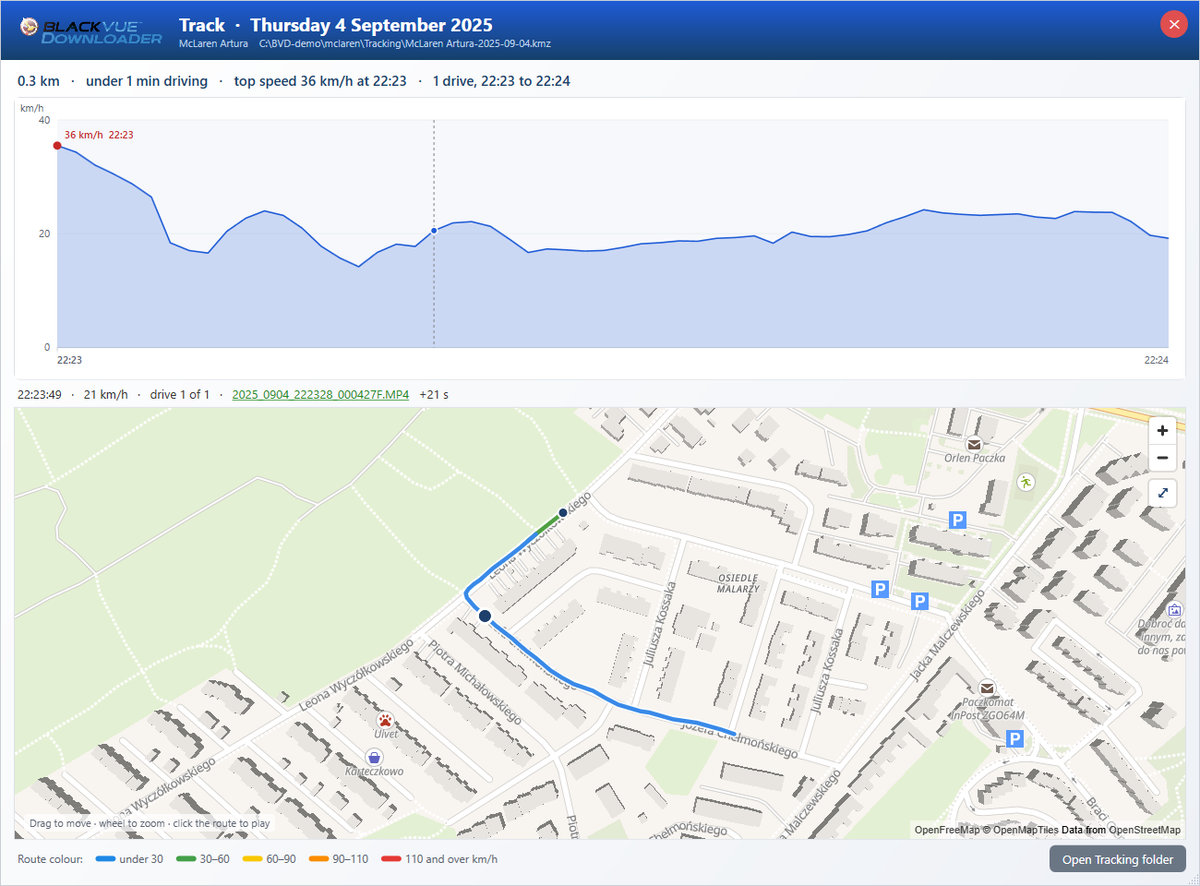
Track window for a VIOFO camera: speed graph and the route on a street map

★  Also in 5.5

A new look

Goodbye to the 1980s look – unless you would like to keep it: tick Classic layout in About → Settings.
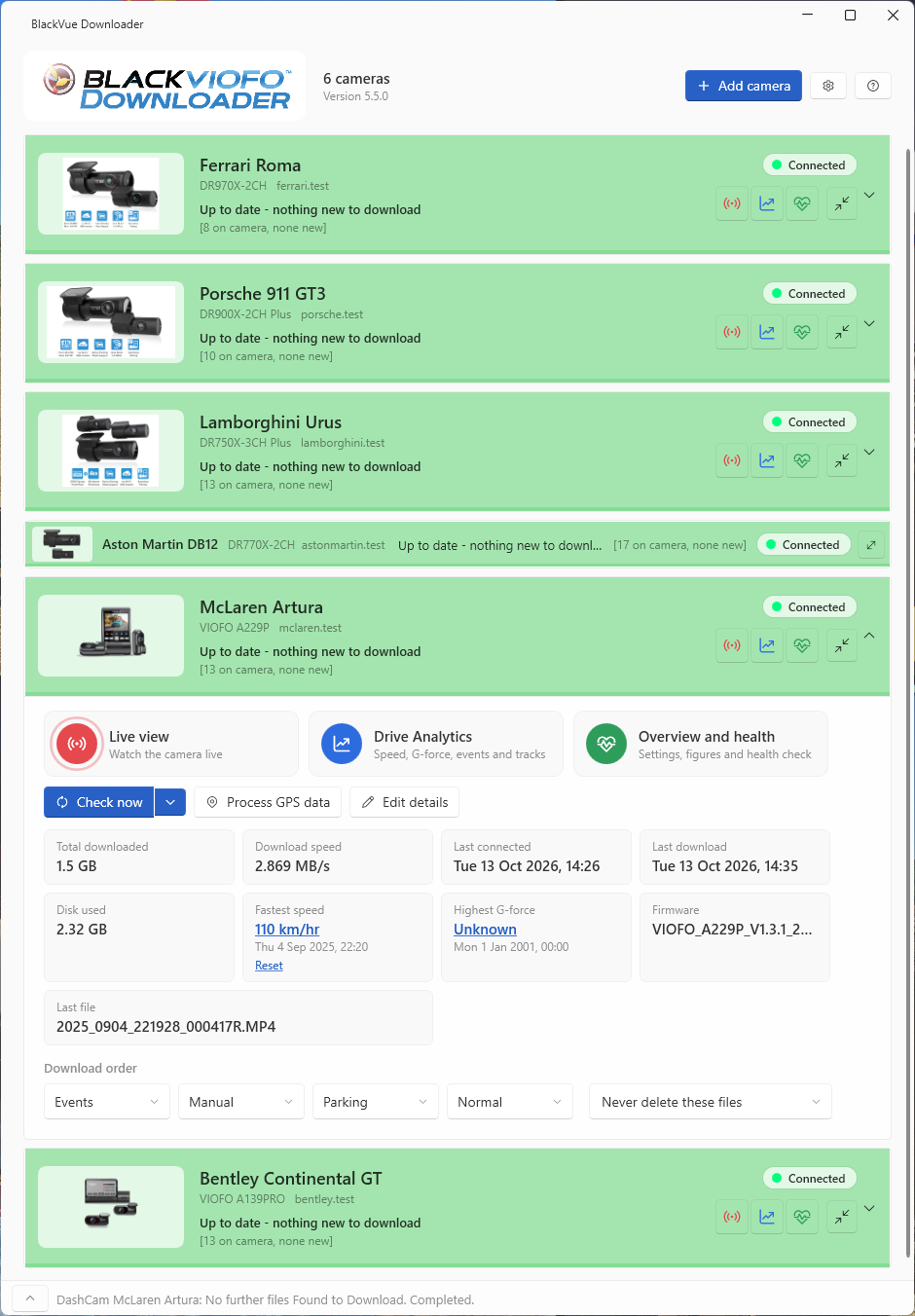
Every camera at a glance, on its own card.

Its picture sits on the camera's progress bar – the colour tells you its state from across the room.

Cameras that are away drop to a single line, and open up again when they come home.

The window follows Windows light or dark mode.

One card per camera, in the order you choose:
- the camera's picture on its progress bar – the same colours as before (blue working, green up to date, amber incomplete, red not reachable, magenta a problem saving on this PC), with the sweep while checking and the arrows while downloading
- what it is doing now, and the file counts, in plain words
- Live view, Drive Analytics and Overview and health one click away, as coloured buttons on every card
- open a card for its figures (downloaded, speed, disk used, fastest speed and highest G-force – each a link to its clip), the download order, and Check now, whose arrow also offers Download this camera now and Download by date
- right-click a card for the full menu, including Move up / Move down to put your cameras in order
- the latest message runs along the bottom of the window; click it to open the whole log

A camera that is out of Wi-Fi range drops to a single line – picture, name, status and its red bar – so the cameras that are home stand out. When it comes back and starts downloading, its card opens up again on its own.
You can collapse or open any card yourself at any time; the next change (going away, coming home) applies the rule again. With six cameras the whole fleet fits in a small window.

The window follows Windows light or dark mode and switches straight away when you change it – and so do About, Drive Analytics, the Overview, Live View and the set-up tips.

Prefer the original layout? Tick Classic layout in About → Settings; it takes effect the next time the app starts, and the classic windows look exactly as before.
- The built-in player plays on into the next clip in time, from the same camera lens, until you stop it; ⏮/⏭ and Page Up / Page Down step a clip at a time
- Pictures for the DR770X (1CH, 2CH, Box) and DR590X, and model names are matched however the camera spells them
- Settings are saved more safely: an interrupted save can no longer leave the settings file empty
- Ms Pac-Man eats the old title the first time 5.5 starts; double-click the title in the app to see her again

An opened camera card: Live view, Drive Analytics and Overview, the camera's figures and download order

Version 5.4
New: Track Data – every drive on a map, with its speed

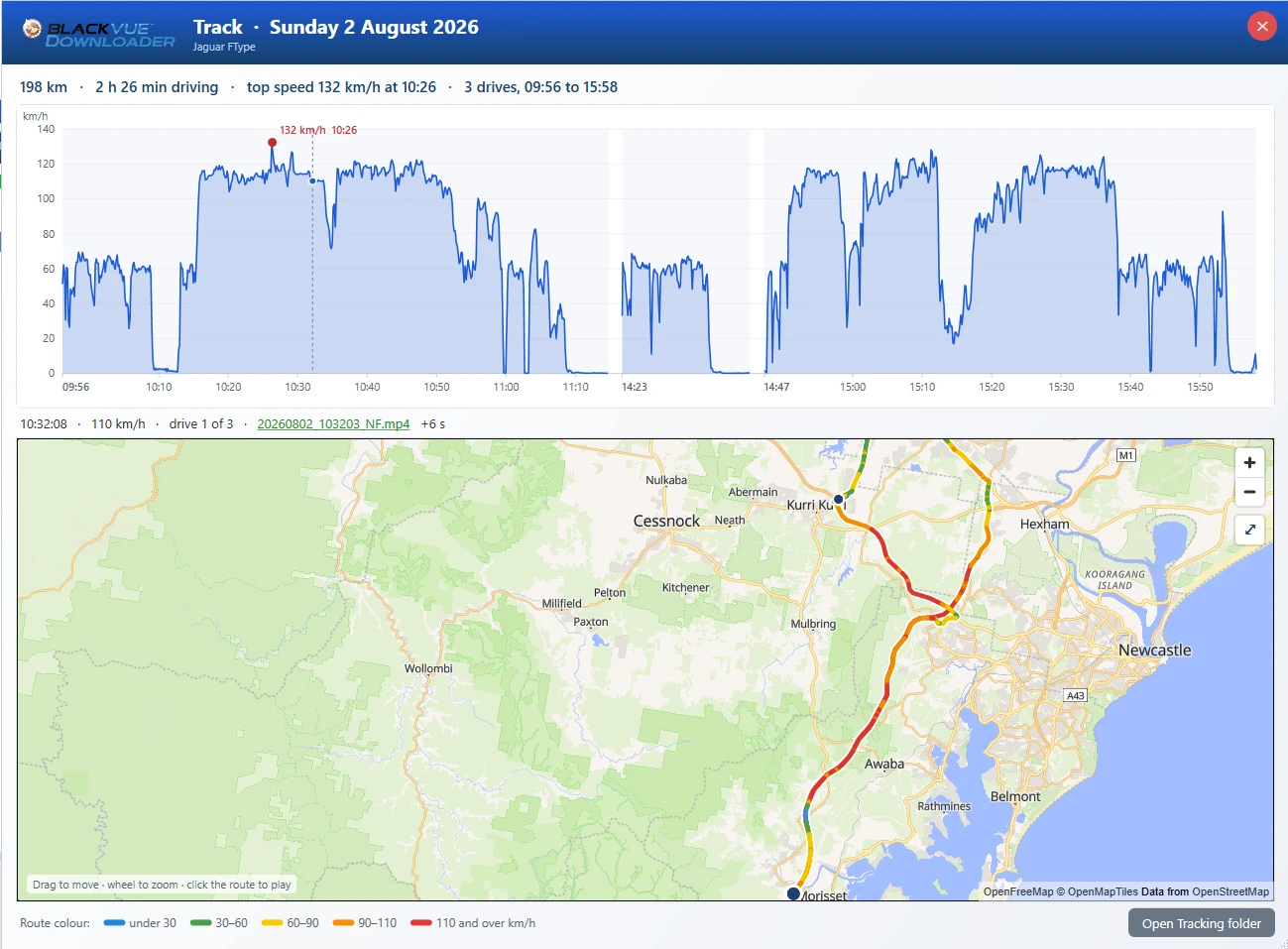
See where you drove and how fast, in one window. Drive Analytics gains a Track Data column: one line per day with the distance, driving time and top speed. Click it for that day's speed graph and a street map of the route, linked together – move along the graph and the map follows, and click either one to play the clip from that exact second. No Google Earth, no account, no uploading.

A fifth column in Drive Analytics lists each day that has a GPS track, newest first, in the same style as the other lists:
- the distance, the date and the number of drives
- then a green line with the driving time and the top speed – click it to open that day's Track window
- it follows the Time frame chosen at the top of the window
- days with only parking footage are shown as “parked”
Track files are made automatically after each download for the last three days. For older days, use Process GPS Data on the camera's Details tab.

Speed graph – the whole day's speed, with each drive side by side (the hours parked in between are left out) and the top speed marked. Move over it to see the time, the speed and the clip for that moment; the clip name is a link – green if the file is saved, red if it is missing.

Street map – the route drawn on a street map and coloured by speed (blue under 30, green 30–60, yellow 60–90, orange 90–110, red 110 km/h and over), with the start of each drive marked. A marker follows the graph, and moving over the route moves the graph. Drag to move, use the mouse wheel to zoom, and one button shows the whole day again.

Click to play – click the graph, the route or the clip name and the clip opens at that second, in the player chosen in Drive Analytics.

The street map needs an internet connection (no account or key). Without one, the route is still drawn in its speed colours on a plain background. Map © OpenFreeMap, © OpenMapTiles, data © OpenStreetMap contributors.

- GPS track files no longer record a false 0 km/h at the start of each one-minute clip, so speed profiles are smooth (this also shows in Google Earth Pro)
- Distance and driving time ignore GPS drift while parked, and parking clips no longer count as drives
- Clicking a moment with no saved clip now says so, instead of opening the wrong clip

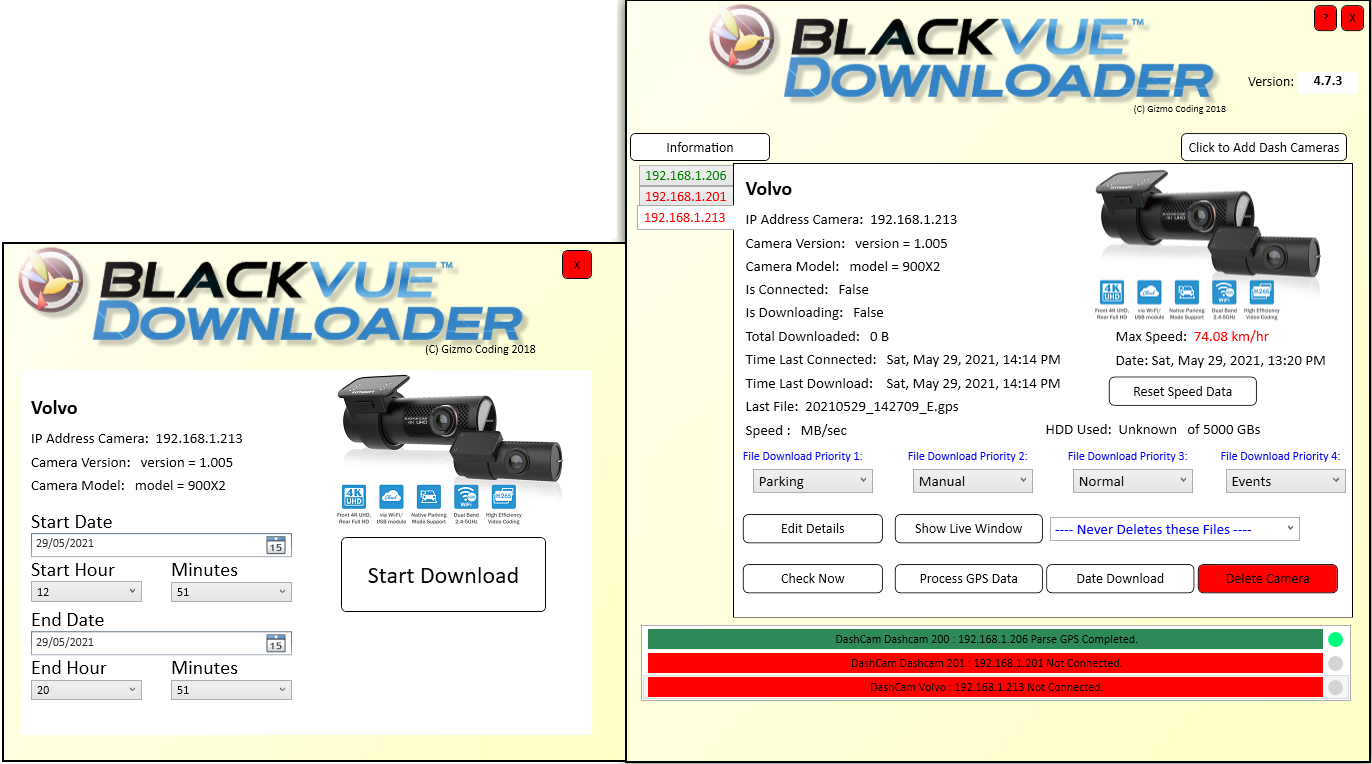
BlackVue Downloader 5.4 – Track window with speed graph and street map

Version 5.3
New: Everything about each camera, and a Health check

Know exactly how each camera is set up - and what to fix. The Camera Overview now reads the camera's own settings, spots common set-up mistakes for you, and can show you the Wi-Fi passwords you have forgotten. Drive Analytics gains a full, day-by-day list of every clip.
Compatible with new BlackVue firmware (ELITE 10 v1.009, ELITE 8 v1.013, DR970X v1.014, ELITE 9 v1.010).

The Overview (camera's Details tab > Overview) is now six pages, changed with the arrow buttons or the Left / Right keys:
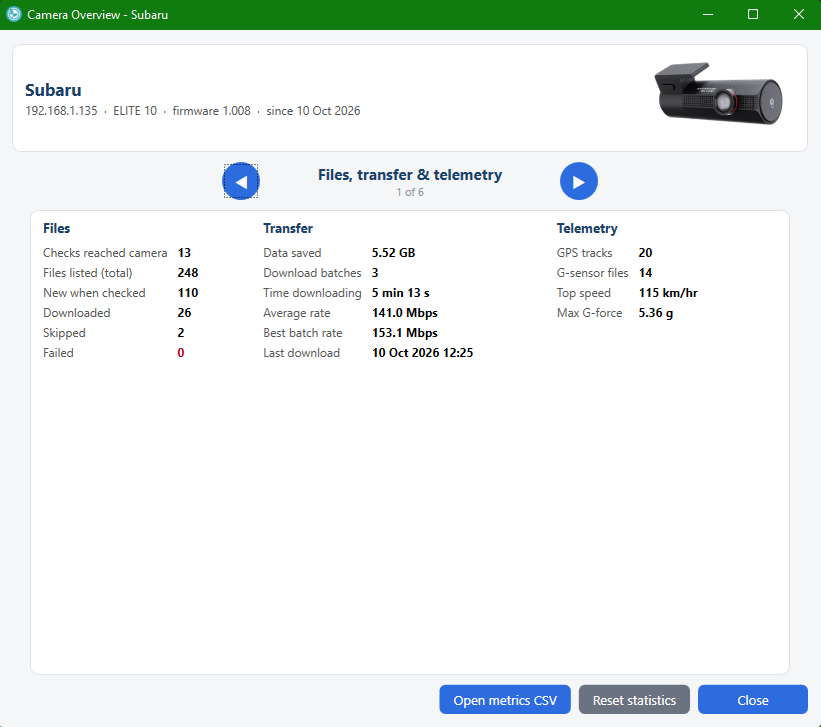
- Files, transfer & telemetry – what has been checked, downloaded and failed, data saved, download speed, GPS / G-sensor counts, top speed and max G
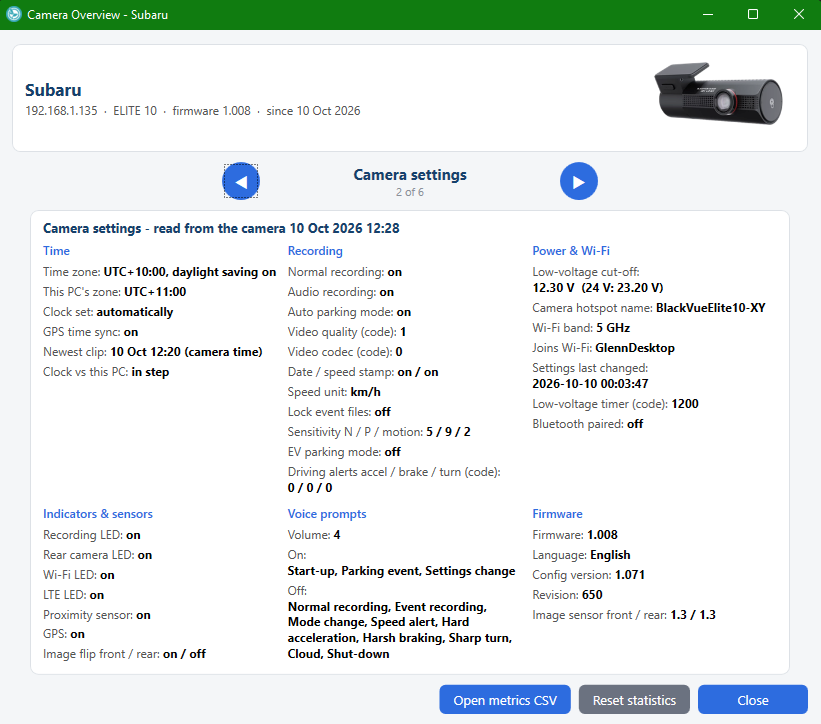
- Camera settings – read straight from the camera and kept while it is away: time zone and daylight saving, how its clock is set, whether its clock agrees with your PC, recording options, sensitivities, low-voltage cut-off, the camera's own hotspot and the Wi-Fi networks it joins, LEDs and sensors, voice prompts, and firmware details
- Downloaded by recording type, and Failed files with the reason for each
- Wi-Fi passwords and Health check (next tab)
Why the time zone matters: a lot of cameras still have the factory time zone, so every clip is stamped hours out – and dates, “Today / Yesterday” and “Days to Download” all follow from it. The Overview now shows it at a glance.

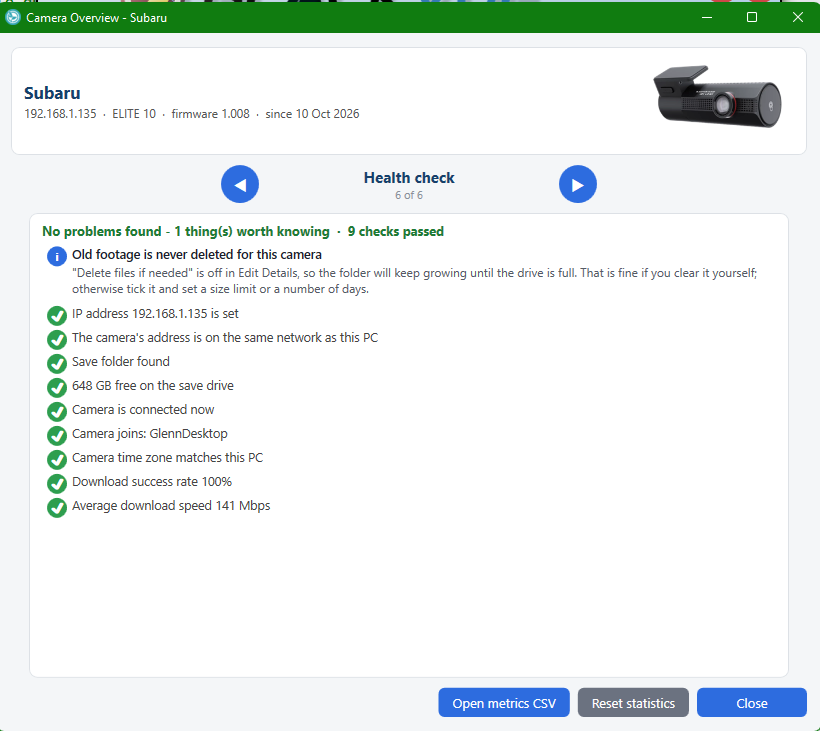
Health check looks over the camera's set-up, its own settings, its connection history and its failed files, and lists anything likely to cause trouble – worst first, each with what to do in plain words – plus the checks that passed. It catches things like: a missing or mistyped IP address, two cameras on the same address, the camera on a different network from the PC, the save drive unplugged or nearly full, every download type set to Ignore, a camera that has never connected or is not set to join any Wi-Fi, repeated drop-outs, a time zone never set or different from the PC, GPS turned off, a low-voltage cut-off that could flatten the battery, the same files failing every time (a worn-out SD card), and slow downloads. It only looks – it never changes a setting.

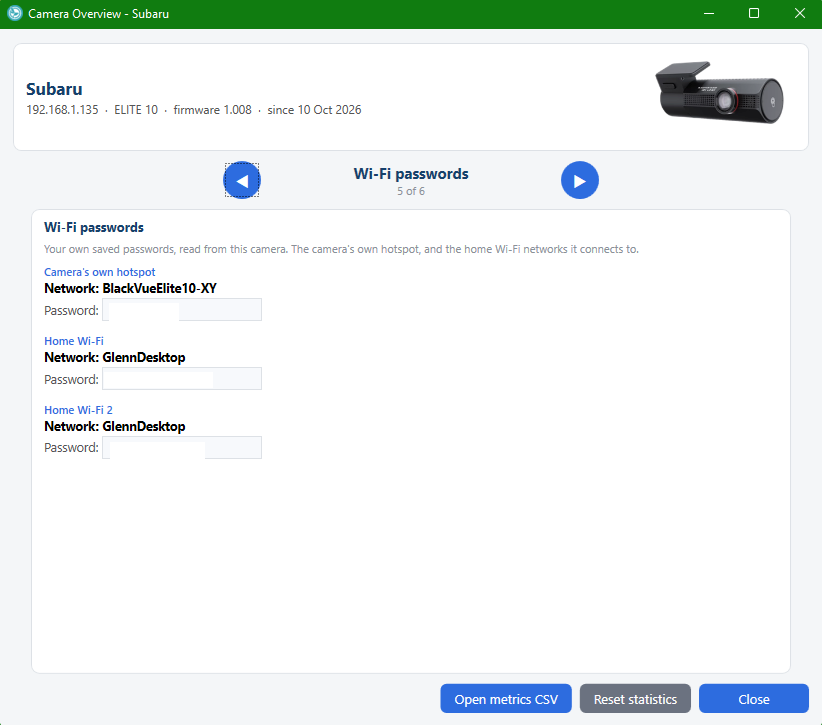
Wi-Fi passwords shows the passwords you saved in the camera – its own hotspot password and the home Wi-Fi it joins – so you can recover one you have forgotten. They are decoded only on your screen and never written to the log.

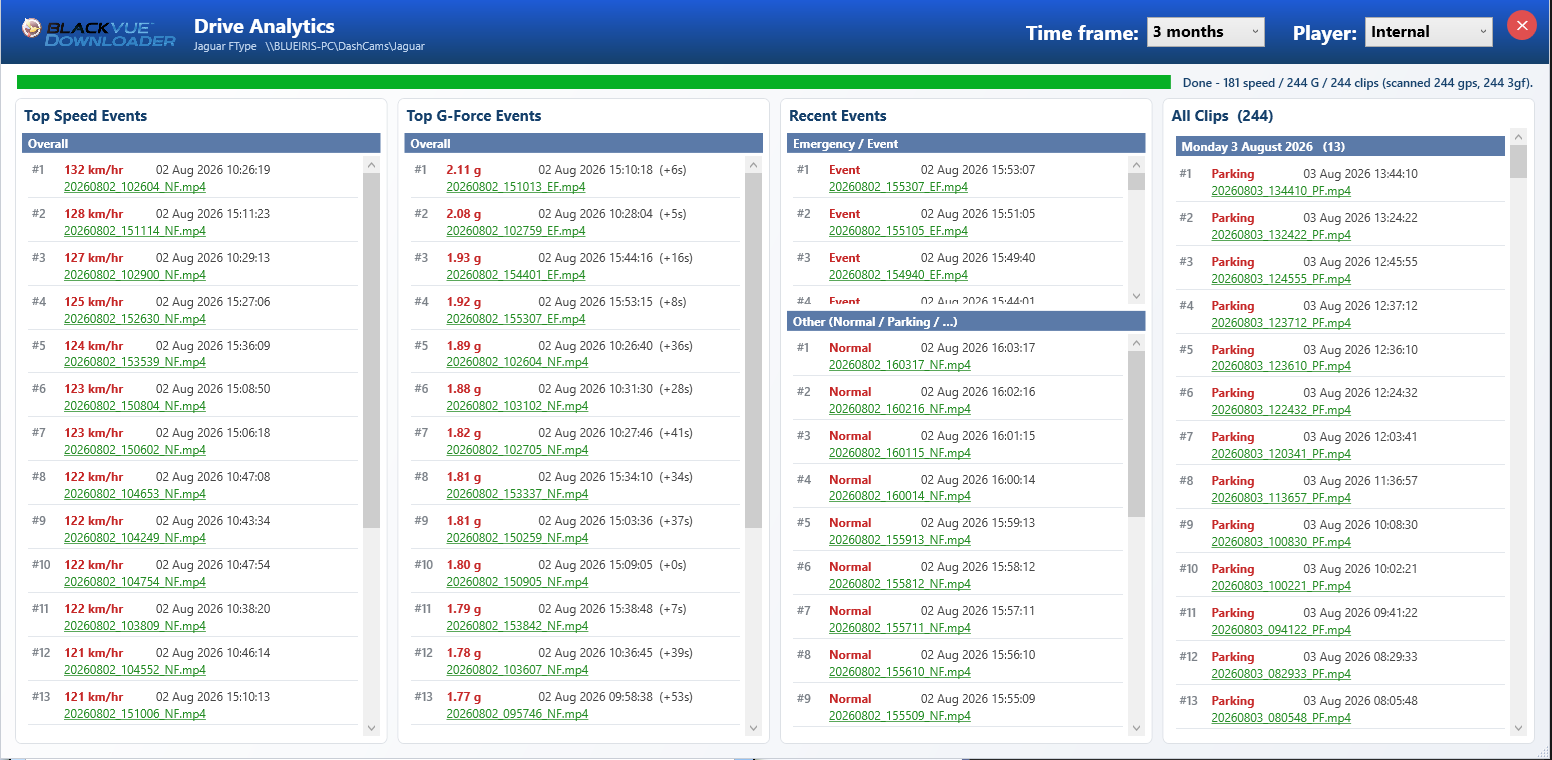
All Clips – a fourth column in Drive Analytics lists every recording in the chosen time frame, newest first, under a heading for each day, in the same style as the other lists: type and time, then the front and rear file names (green if saved, red if missing) – click either to play.
- Closing the clip player now takes you back to Drive Analytics, not the main window
- More protection against unexpected errors closing the app

Camera Overview - Files, transfer and telemetry
Camera Overview - Camera settings
Camera Overview - Wi-Fi passwords
Camera Overview - Health check
BlackVue Downloader 5.3 – Drive Analytics with All Clips

Version 5.2
New: One camera at a time on Wi-Fi, and a Camera Overview

Faster downloads from more than one camera, and a clear picture of every camera's history. Two cameras downloading together are slower than one after the other – 5.2 fixes that, and shows you exactly what each camera has done and what failed.

BlackVue cameras are single-antenna (1x1) Wi-Fi clients. When two of them download through the same access point at once they talk over each other – each camera can hear the access point but not the other camera – and the radio spends most of its time on collisions and retries. Two cameras downloading together finish later than the same two downloading one after the other.
- About > Settings > One download at a time per transfer group. Off by default – nothing changes unless you tick it
- Edit Details > Transfer group (Default, A–E). Cameras that share one access point go in the same group; if all your cameras use the same Wi-Fi, leave everything on Default and tick the box
- Only the file transfers queue – checking a camera and reading its file list are never held up. Different groups download in parallel
- A waiting camera says so on its progress bar: “waiting for another camera in Group Default to finish…”
- Need one camera's footage first? Right-click its progress bar > Download This Camera Now – it goes to the front of its group until its download has finished; the camera currently downloading pauses at the end of its current file and resumes afterwards
- Every download batch is logged to a CSV (camera, group, bytes, seconds, Mbps) so you can compare before and after

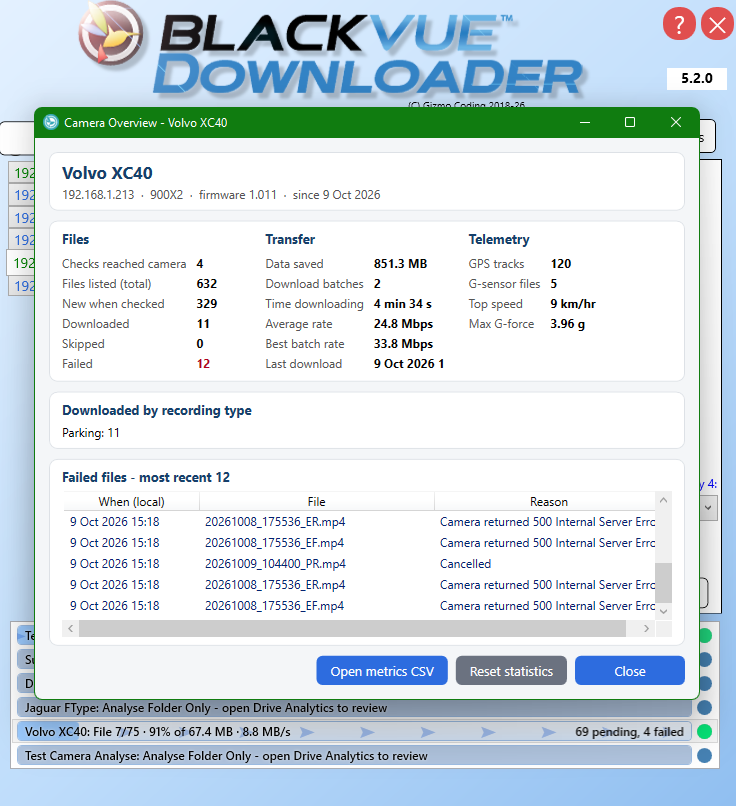
A new Overview button on each camera's Details tab shows that camera's figures, kept from when it was added to 5.2 (or since you last pressed Reset):
- Files – checks that reached the camera, files listed, new files found, downloaded, skipped, failed
- Transfer – data saved, download batches, time spent downloading, average and best rate, last download
- Telemetry – GPS tracks and G-sensor files obtained, top speed, max G-force
- Downloaded by recording type – Normal, Event, Parking, Manual, Impact…
- Failed files – the most recent 200 with the reason: “Not found on camera (404) – may have been overwritten on the SD card”, “500 Internal Server Error (often an SD-card read problem)”, timeout, drive full… A card that is on its way out shows up here long before it fails completely

Small things that add up.
- Delete Camera has moved to the Edit Details page (red button beside Update) and now asks before deleting
- Right-click a camera's progress bar > Open Download Folder
- All app-wide options are together in one Settings panel on the About tab
- Switching the scheduler on or off takes effect at the next file: a camera already downloading pauses at the end of its current file until its turn, then carries on where it left off
- Cancel Download also works while a camera is waiting for its turn

BlackVue Downloader 5.2 – Camera Overview

Full changelog
Every change from 5.1.1 to 5.5.3

On 5.1.1 or earlier? Everything that has changed since is on one page, newest first – and it all arrives with the 5.5 update.

- Version 5.5 – VIOFO cameras alongside BlackVue, a new main window with a card for each camera, light and dark mode, a redesigned Add / Edit camera window, Find cameras, and fastest speed and G-force figures that ignore GPS glitches and leave gravity out
- Version 5.4 – Track Data: each day’s drives on a speed graph and a street map, linked to the clips
- Version 5.3 – the new BlackVue firmware, the camera’s own settings and a Health check
- Version 5.2.1 – fixes for one download at a time
- Version 5.2 – one download at a time per Wi-Fi group, and the Camera Overview

Read the full changelog →

Version 5.1.1
Clearer camera progress bars

Each colour now means one thing, and the text is accurate. A glance at the main window tells you what every camera is doing, what the last run achieved, and whether anything needs you. The full picture – every colour, movement and message, with a live demonstration – is in the Progress Bar Guide.

What the bar shows:
- Left text – the camera name and what it is doing right now, e.g. “File 12/45 · 34% of 210.0 MB · 4.2 MB/s”
- Right text – the counts for the current or last run, e.g. “33 pending, 1 failed” while downloading, “[45 new: 40 ok, 3 skipped, 2 failed]” when finished. “Last run:” in front means it is from the previous check
- Fill – progress through the WHOLE batch of new files, not one file at a time
- Moving arrows = files are downloading. A moving sweep = the camera is being checked or GPS is being processed
- Hover over a bar for the camera's name, IP address and the full text of both lines
- Click a bar to jump to that camera's Details tab

Bar colours:
- Blue – working: checking the camera, reading its file list, downloading, or processing GPS
- Green – up to date: nothing new on the camera, or every new file downloaded
- Amber – finished but incomplete: some files failed (retried at the next check), or you pressed Cancel
- Red – camera not reachable (out of Wi-Fi range, switched off, or not answering)
- Magenta – problem saving on THIS PC: save drive full, or save folder / network drive unavailable. The camera is fine
- Lavender – a date-range download you requested is running
- Steel blue – “Analyse Folder Only” camera, never downloads
Status dot (right of the bar): flashing green = downloading now · green = fully up to date · orange = files still waiting (incomplete, failed or cancelled) · steel blue = Analyse Folder Only · grey = no complete download in the last 24 hours (at start-up)

- Several cameras downloading at once no longer interfere with each other's progress display
- The “downloaded” count is now correct (skipped and failed files were being counted as downloaded)
- File timeout now means “no data received for this long” – large files on a slow Wi-Fi link are no longer cut off while still downloading
- Drive full / save folder unavailable is shown as a save problem instead of “Not Connected”
- A camera file list that could not be read is no longer reported as “up to date”
- Text on the bar no longer overlaps; long text is shortened with “…” (full text in the tooltip)
- A “Drive Analytics” button shows over the camera picture for 2 seconds when a camera tab is opened, and whenever the mouse is over the picture

Watch a typical check. This is how one camera's bar changes during a normal check and download. It repeats automatically – click a step to jump to it.

Version 5.1
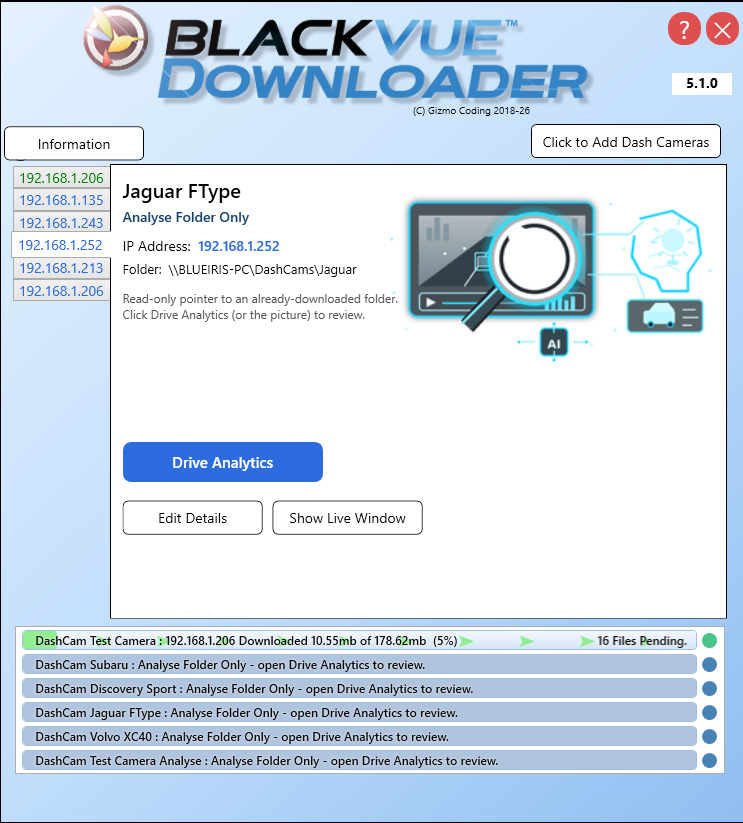
New: Analyse Folder Only

Even more ways to get to your footage. Review clips from a folder that was downloaded elsewhere, scan huge histories in seconds, and keep running around the clock.

Review footage without a live camera. Point a camera entry at an already-downloaded folder – e.g. a shared / NAS drive filled by BlackVue Downloader on another PC – and review it (Drive Analytics, clip playback and Live View) with no downloading, checking or deletion of that folder.
- Tick Analyse Folder Only when adding a camera; only Name + Folder are needed (IP optional). Point at the folder or its "Record" subfolder – either works
- A clean, dedicated Camera Details tab: the camera picture, a Drive Analytics button, plus Edit / Live / Delete
- Captures the camera's model & firmware whenever it happens to be reachable, and remembers it – so the right model picture and Live View stream work even when the camera is later offline. It only needs to be on the network once.

Faster, tidier analysis.
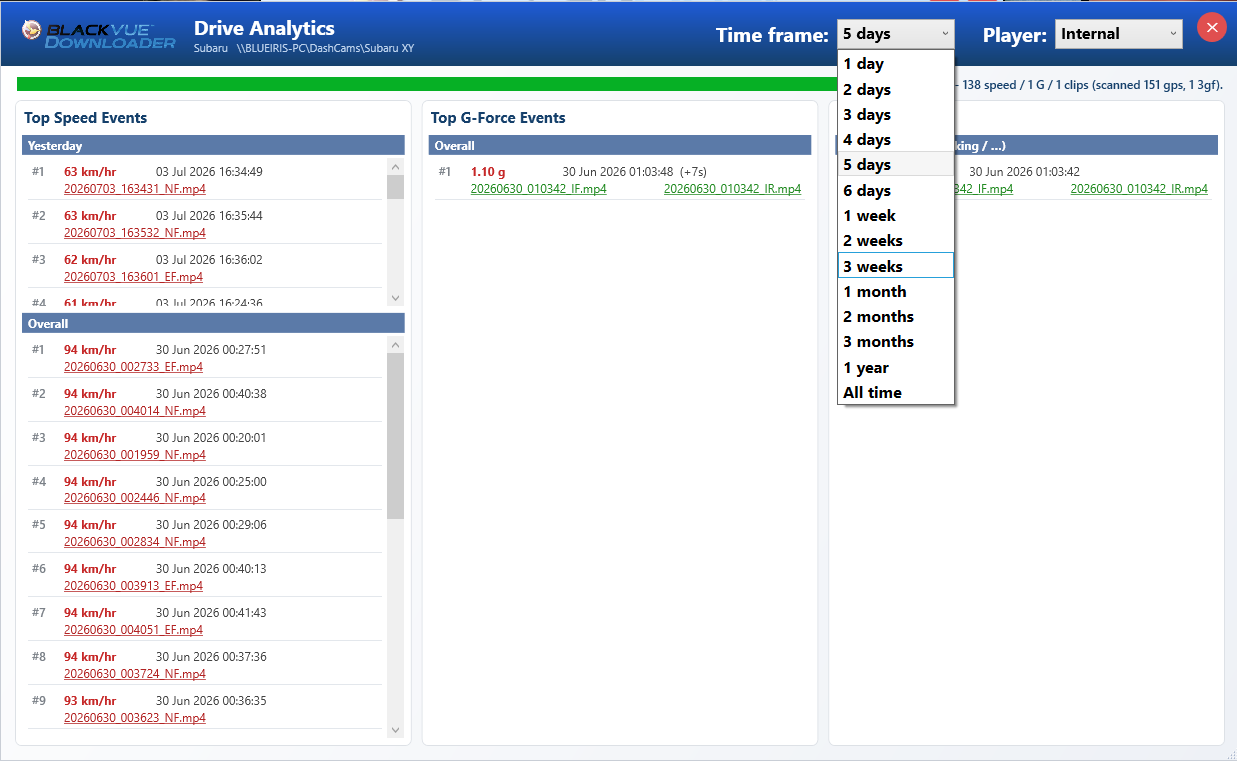
- New Time frame selector (1 day up to 1 year, or All time – default 5 days) – dramatically faster on cameras with tens of thousands of GPS / G-sensor files
- Empty Today / Yesterday (and Emergency / Manual) sections now collapse, so the main Overall / Other list uses the space

Smoother to use, and built to run continuously.
- Click a camera's progress bar to jump straight to its Camera Details tab
- Edits to a camera now take effect immediately – no app restart needed
- Clips with a wrong ‘future’ date (a bad camera clock / time zone) are still downloaded, and flagged in the log, instead of being silently skipped
- Fixed a rare crash that could close the app after running a long time (a Windows pen/touch input bug) – important for an app designed to run around the clock

BlackVue Downloader 5.1 – Analyse Folder Only
BlackVue Downloader 5.1 – Drive Analytics time frame

★  Latest Release

Version 5.0.0.0
New Cameras & Firmware

BlackVue's newest cameras (ELITE 9 / ELITE 10 and up) moved to a brand-new RESTful camera firmware (1.009+) that changed how footage is listed and downloaded. Version 5.0.0.0 adds full support:
- Local Wi-Fi download from the new RESTful cameras
- Reads the camera's new settings / configuration format
- All while keeping full support for every older camera and firmware

Live View now works on the new firmware too – and rear-camera handling is fixed.
- New cameras stream live over their built-in RTSP video server
- Single-lens cameras (no rear) are now handled correctly – no more empty rear window
- Older cameras continue to use the existing MJPEG live view
- Front / rear channel selectable as before

GPS keeps working on the new firmware, which stores it differently – and the g-sensor now does much more.
- GPS & G-sensor data extracted directly from the recorded MP4 files
- New G-force reporting: your peak G is recorded for every drive, with the exact moment it happened
- Day-by-day Google Earth tracks generated as before (speed / route / time)
- Max Speed now links straight to the clip where it was reached
- Track times now corrected to your local time zone

More camera pictures and model support.
- Added images for the newer models (DR970X, DR770X and the ELITE range)
- The camera picture now appears even while the camera is offline
- Full artwork for the very latest models is still being completed

BlackVue Downloader 5.0.0.0

Version 5.0.0.0
New: Drive Analytics

Get straight to the footage that matters. Open Drive Analytics for any camera – just click its picture, or right-click → Open Analytics – and instantly see your most important moments, each a direct one-click link to the exact clip.

Your fastest moments and hardest knocks, at a glance.
- Top Speed events ranked highest-first (km/h or mph to suit your region)
- Top G-Force events read from the camera's g-sensor, pinpointing the exact moment in the clip
- Split into Today, Yesterday and Overall
- Every entry links straight to the video

Every event type, neatly organised.
- Emergency / Event and Manual recordings in their own lists
- All other driver events – Impact, Overspeed, Hard Braking / Acceleration / Cornering, Geofence, Drowsy, Distracted and more – sorted by importance
- Routine Normal & Parking clips kept out of the way
- Most recent at the top

No more digging through folders for the clip you need.
- Click any entry to open that exact clip
- Matching rear footage shown alongside the front, when available
- Links are colour-coded so you can see which clips are already on your PC
- Built fresh each time you open it – ready in seconds

BlackVue Downloader 5.0.0.0– Drive Analytics

Version 5.0.0.0
New: Jump Straight to the Moment

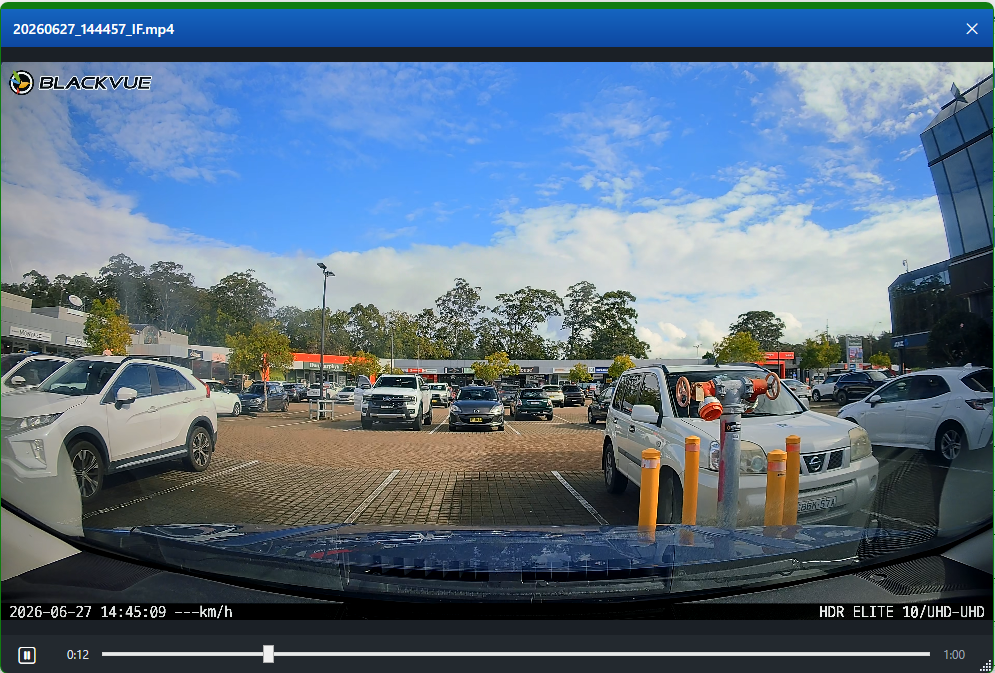
Click an event and the video opens already at the exact second it happened. Top-speed and G-force moments – and every event clip – now seek straight to the instant, instead of starting from the top of the minute.

No more scrubbing to find what happened.
- Opens at the precise moment of the event – the peak speed, or the impact
- Works for both the front clip and the matching rear footage
- The exact instant comes from the GPS log and the camera's g-sensor

Play clips however you like – and your choice is remembered between sessions.
- External: opens in your installed VLC, MPC-HC or mpv, jumped to the moment
- Internal: the new built-in viewer
- System: the Windows default player
- Pick it from the selector in the Drive Analytics title bar

A simple, no-install player built right in.
- Full seek bar with play / pause and keyboard shortcuts
- Opens at the clip's true size, centred over Drive Analytics
- Jumps straight to the event the moment it opens
- Uses the same video engine as Live View – nothing extra to install

BlackVue Downloader 5.0.0.0 – jump straight to the event moment

Version 5.0.0.0
App Features & Improvements

New: “Ignore Hours” – skip footage recorded between set hours, per camera.
- Choose a start and end hour (e.g. ignore everything between 10 PM and 6 AM)
- Perfect for skipping routine overnight parking footage
- Optional “always keep Event, Impact & Manual” so a real incident is never missed

Cancel Download and clearer progress.
- Right-click a camera → Cancel Download to stop its queue
- Animated download progress with a flowing indicator
- A status dot shows completion at a glance
- “Ignore” download priority to skip a whole file type

More at-a-glance camera information.
- New “Low-Voltage Cut-off” reading (your camera's battery-protection voltage)
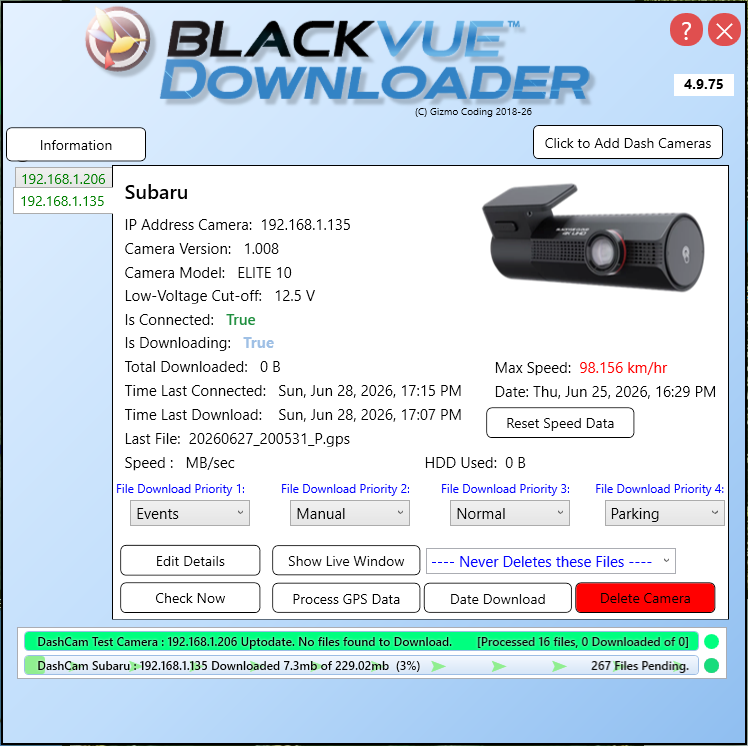
- A green “Connected” status and an animated “Downloading” indicator on the camera details

- Refreshed, consistent styling across the whole app
- Single-instance: launching again reopens the existing window instead of erroring
- Minimises to the system tray with a notification when closed
- Startup crash fix, plus numerous reliability and Microsoft Store packaging fixes

Coming soon to the Microsoft Store.

Previous Releases

Version 4.7.0+

Hard to summarise this feature in a title!
Bug version 4.7.0 onwards allows immediate download of a certain Date and Time window.
eg.  Accident or incident at 5pm after a day of driving
When home select camera and press the new Date Window, select the time interval and 'Start Download'
When Camera next connected or immediately if currently connected will start downloading all files from this window.
Once finished - will return to usual checking/file downloading.

See Below:

Add Bug fix for IF and IR files in Parking mode if using Time Lapse recording
Add 6 hours buffer to current time, in case Camera DateTime out of sync, daylight savings etc.


Version 4.6.5+

Add Full support for new Models of Blackvue Cameras
DR900X-1ch and DR900X-2ch
DR750X-1ch and DR750X-2ch

Bonus appears to be faster wifi throughput; up to 17 mb/sec on my testing (double earlier models it would seem)


New Support for latest range of Blackvue Cameras X-Models

Faster download speeds with new Cameras

Version 4.5.0+

Update Settings File location, hopefully to better future proof againsts Windows 10 changes
BVD should load old file, re-jig and re-save in new location without user input


Add to the About screen Backup/Restore Settings options
Saved as BVDbackup file, can rename and save multiple copies as needed.

Add Green Dot to right of progress Bar
This dot is either Grey or Green - if it is Green it indicates that the Dashcam has successfully completed downloading files within the last 24 hours

Minimise long term memory usage, tidy up as much memory usage as possible

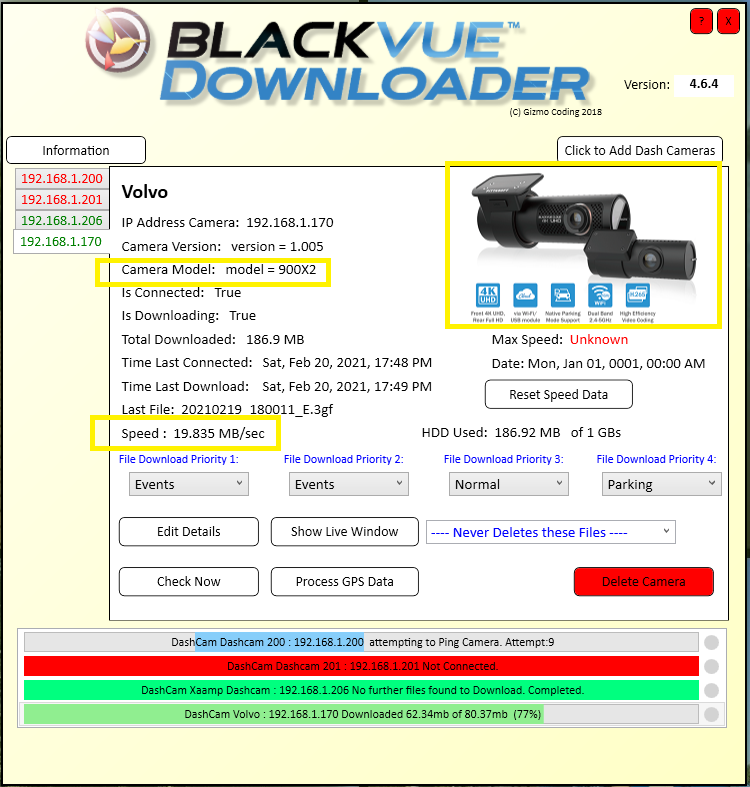
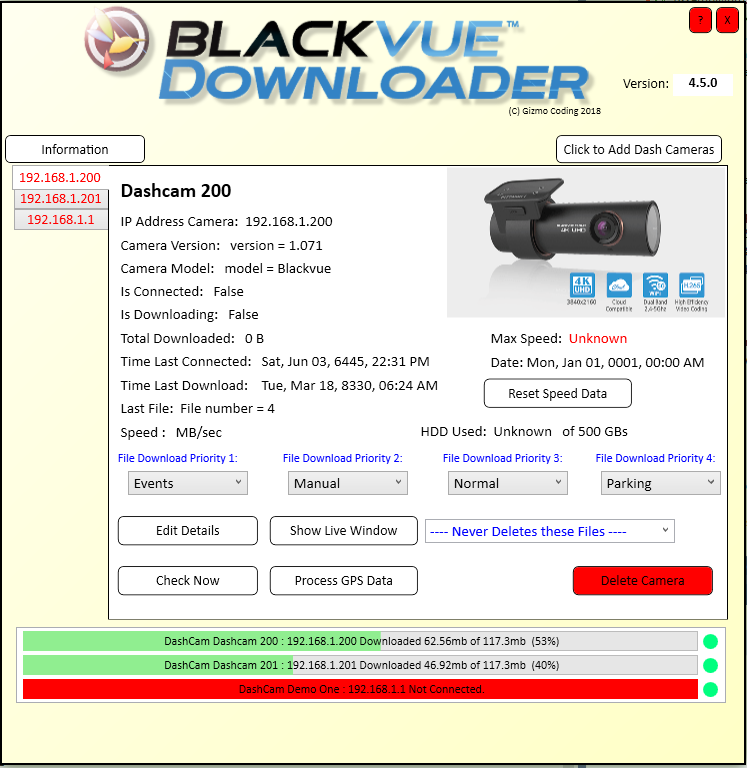
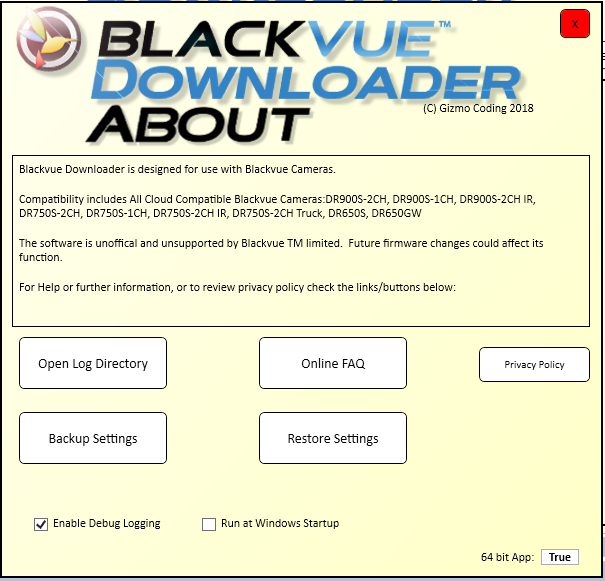
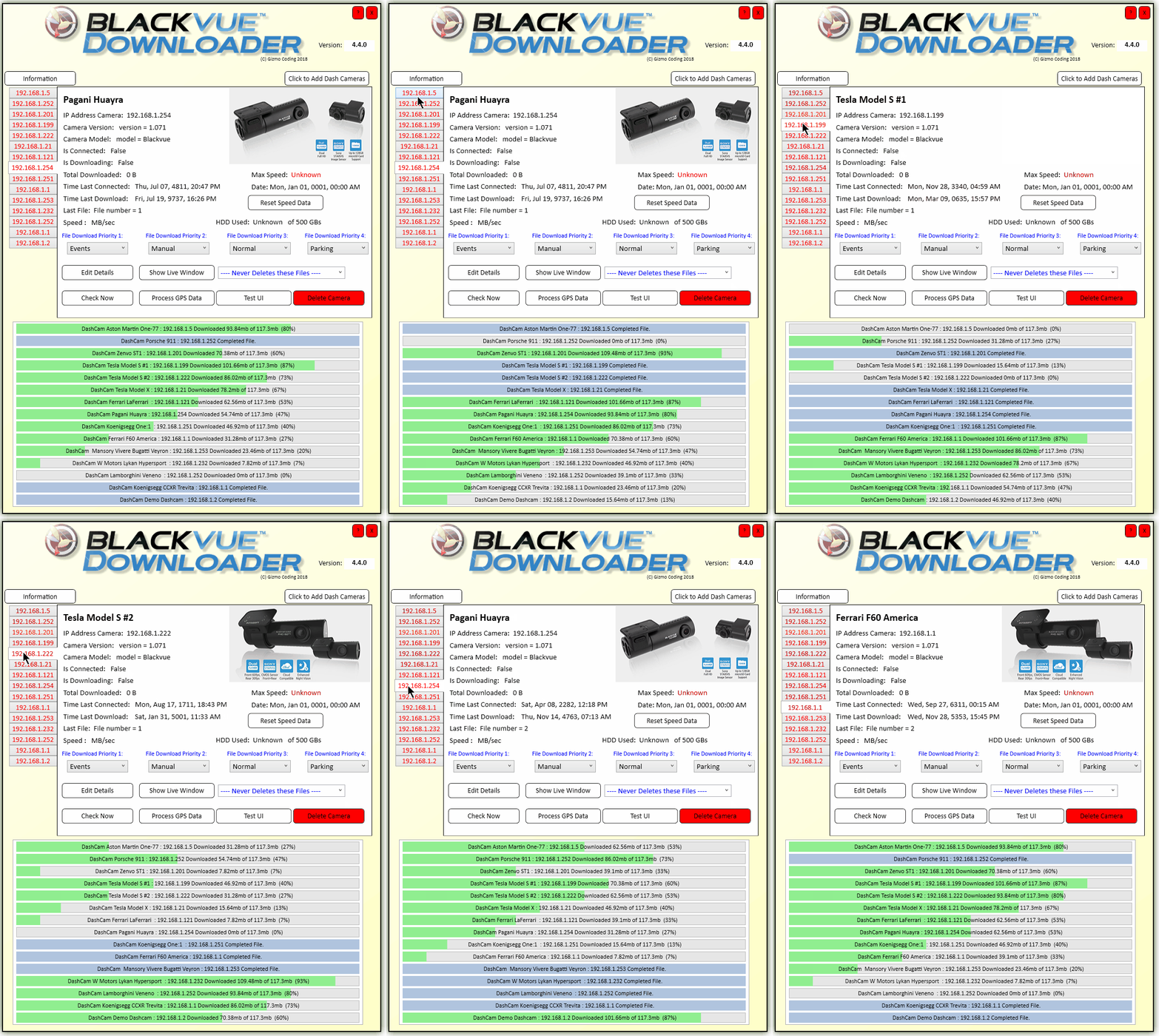
4.5.0 Main Page - Note the Green Dot, these Cameras have successfully completed downloading within past 24 hours.
Two are actively downloading now, 3rd unconnected currently.

About Screen - Press ? in Main Screen,Top Left
Backup/Restore Settings Options

Version 4.4.0+

Changes to log handling given apparent windows changes
Add Exception.log as separate log file in case more significant errors.


BVD can't stop your drive from filling up!  It can certainly not use anymore space that you set, but for various reasons that may not be enough.
If this happens - will better report what is going on

Have had one report of SD Card read error (Error 500)  Appears to be bad file data on SD card that cannot be read.
Prior versions which take this error to mean that the car/dashcam is now gone, this updates skips this particularly file.
If you get this error it may go away of its own accord, however formatting SD card has worked in the reported case

Open directory of Log files in About Window
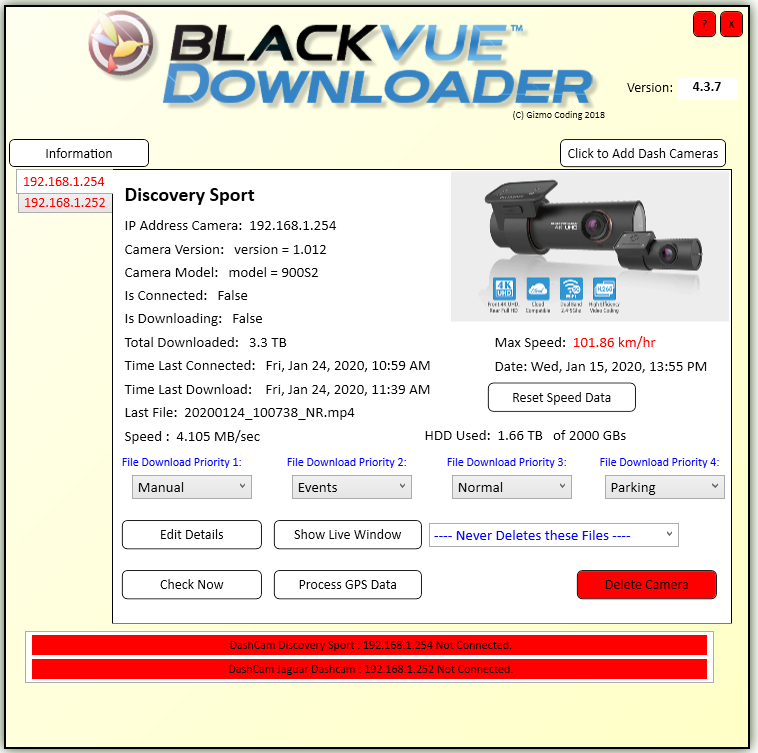
Update dependencies
Save Settings file every 12 hours, in case some major computer crash/update
Better handling of 'unhandled exceptions'
Some code changes to avoid the above

Version 4.3.7+

Add About Screen for Info and Hiding Boxes/Settings
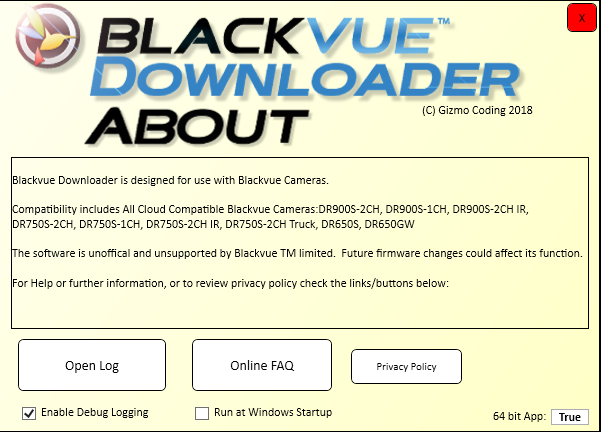
To Access Press Top Left ? Box.


Remove Startup Error if haven't selected run with WIndows
Spelling fix for successful! Oops

Change handling of 404 File Not Found Errors, would occur quite commonly it appears the SD Cards over-writes files and then those files are not present to download.  Hence the 404 File Not Found Errors
4.3.7 Update changes handling of this error to a minor, skip file error, but don't make whole Dashcam as unavailable.

Logging changes, avoid unneccesary entries

4.3.7 Main Page

About Screen - Press ? in Main Screen,Top Left
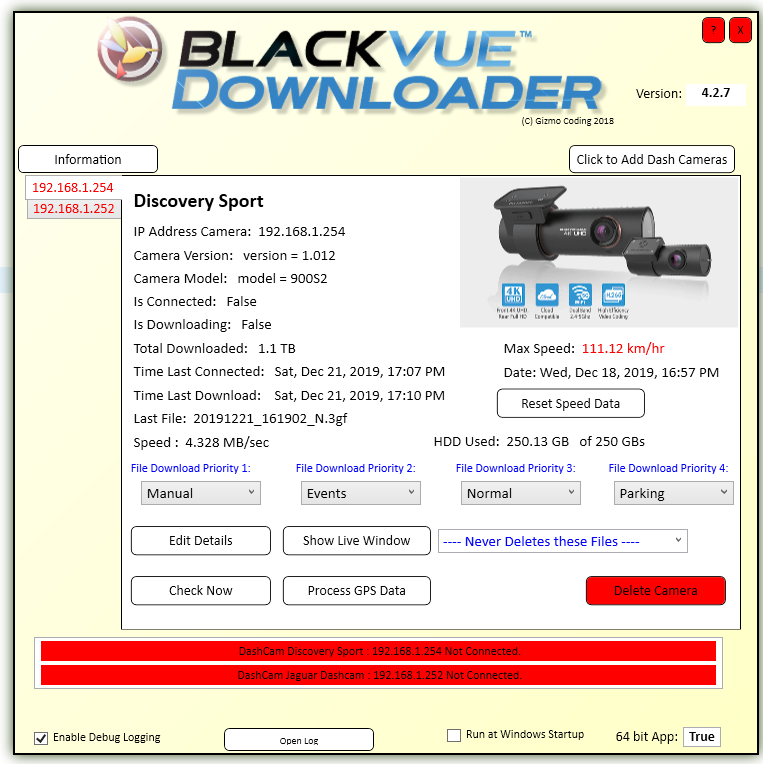
Version 4.2.7+

Some Cosmetic changes to look better!

Fixes for better compatibility with Google Earth for the KMZ Files
Better Compatibile with Profile data - correctly showing speed graphs all going well

Skip duplicate timestamps helping with compatibility, use all timestamps regardless - helping with compatibility
Skip 0 byte GPS files (Parking ones)
Parse ALL GPS files, missing from other solutions out there

Compatible with DPI, Scaling on all sized Windows 10 Monitors

Allow resizing of Live Video Window

Download all GPS files first, on first connection, Parse, generate Track Data - then start with Video Files.

Allows Track files to be reviewed, looked at soon after camera connection.

Keep all GPS data for 21 days (minimum file sizes)

If only was a Blackvue Camera option for the same....

Hopefully robust fix for Windows 10 Startup Options...

Version 4.2.0 +

Adds GPS Track Data as shown in this youtube example Below:

Manual can process all GPS data by pressing button, or automatically creates file once finished downloading.

Otherwise GPS data is processed at the end of downloading completed for all days,  including the current date/day.  This data may obviously be added to as more journeys and data are added.

Track file is tiny/small, but contains tracking info, including speed and Date/Time at any time along the path.

As you can see within Google Earth (free) can easily review tracking, path data, including checking data/time and speed at any point along the path by clicking.  By Right clickng on Track file - can show 'Elevation Profile'  this shows graph at bottom of elevation data & more usefully speed data.

Newly created KMZ files are saved in the Same location as your Videos.  A separate directory called 'Tracking' is Created.

These files are kept until you manually delete them - generally speaking they are a few hundred KBs only.

Blackvue Downloader will automatically create these files once downloading is finished.

Very small data size - but gives very useful long term tracking data.

Helps with fleet/driver management, and review.  Long term data saved for distant review, even months later...

Very easily review paths vehicles have taken, check for strange destinations and review max/min speed and acceleration/declaration very easily.

SHARE THIS PAGE!


email:
me at gizmocoding.com


VIOFO support’s reply, 11 Oct 2026 (T330 page Q&A)
VIOFO support: Yes, this new line of cameras supports Wi-Fi station mode; a special firmware can keep Wi-Fi always on so parking mode and station mode work together.

VIOFO’s answer, not yet confirmed by a user of these cameras with Dashcam Downloader. Please use the 7-day trial to check your own camera.